EA installation · MetaTrader 5

Install Your Axiom Algorithmic EA

After purchasing, you will receive an email containing a ZIP installation package. Follow the steps below to extract your compiled EA, install it in MetaTrader 5, and test it on your own broker demo account. No coding required.

Dark blue trading platform dashboard and market charts

Illustrative platform image, not actual account performance.

What you'll receive by email

We will email you a ZIP archive containing the compiled AxiomCapitalTrading.ex5 Expert Advisor and a setup README. Look for your Axiom Capital Trading purchase confirmation email, check the sender carefully, and download the ZIP to your Windows computer. Scan it with your security software. If your email provider blocks ZIP or EX5 attachments, contact us for a secure download link instead. Never share your broker password by email.

Important: An .ex5 file is the compiled MT5 EA; an .mq5 source file is not required for installation. The installation package does not automatically install the EA.

Installation walkthrough

11 steps: from your email to a running EA

01

Install MetaTrader 5

Download the Windows desktop version of MetaTrader 5 from your broker or the official MT5 website. Install and open the terminal. Log in to your own broker account using File → Login to Trade Account. Axiom does not provide a funded account.
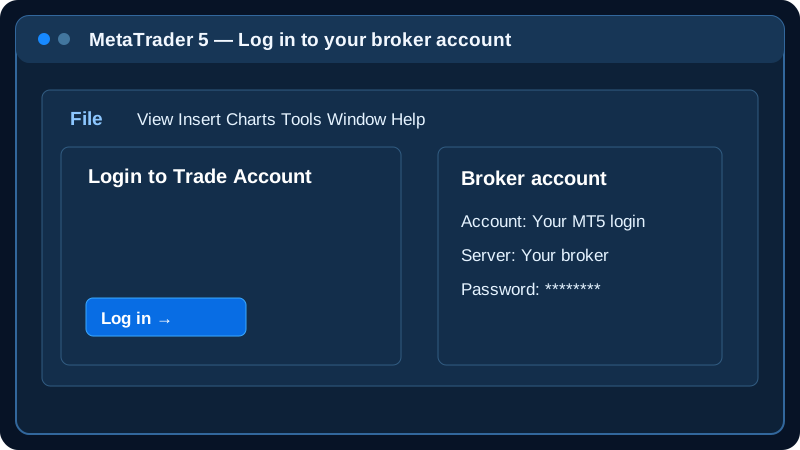
Illustrated example: Install MetaTrader 5
Illustrated guide — menu appearance may vary by MT5 version.
02

Download and extract your Axiom ZIP

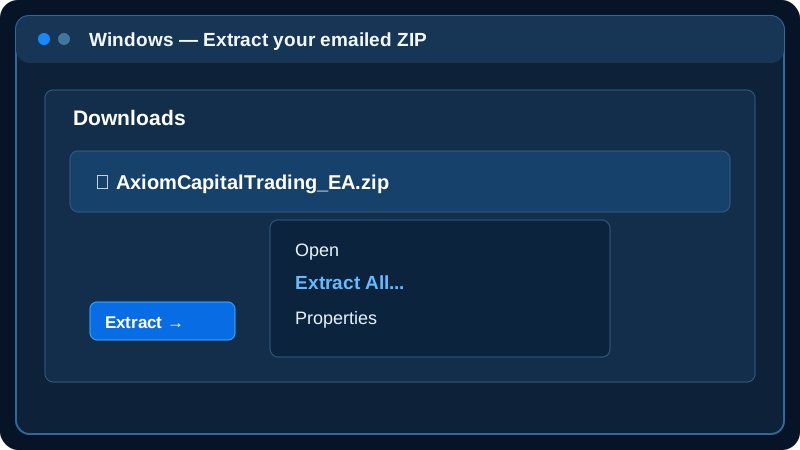
In your purchase confirmation email, download the attached ZIP (or use the secure download link if provided). Open Windows File Explorer, find the downloaded ZIP in Downloads, right-click it, and choose Extract All → Extract. Open the new folder and locate AxiomCapitalTrading.ex5. The file should end in .ex5, not .zip. Do not double-click the EX5 file; MT5 loads it.

Illustrated example: Download and extract your Axiom ZIP
Illustrated guide — menu appearance may vary by MT5 version.
03

Open the correct MT5 data folder

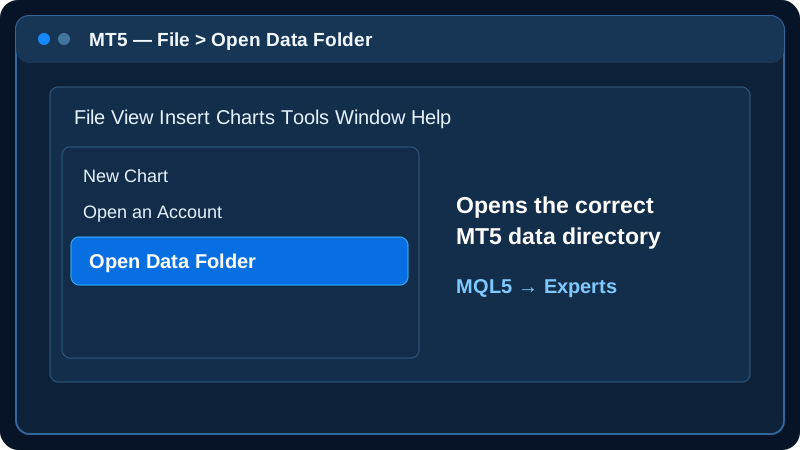
In the MT5 terminal you intend to use, select File → Open Data Folder. Open MQL5, then Experts. This is the correct location even when MT5 is installed under Program Files.

Illustrated example: Open the correct MT5 data folder
Illustrated guide — menu appearance may vary by MT5 version.
04

Copy the compiled EA into Experts

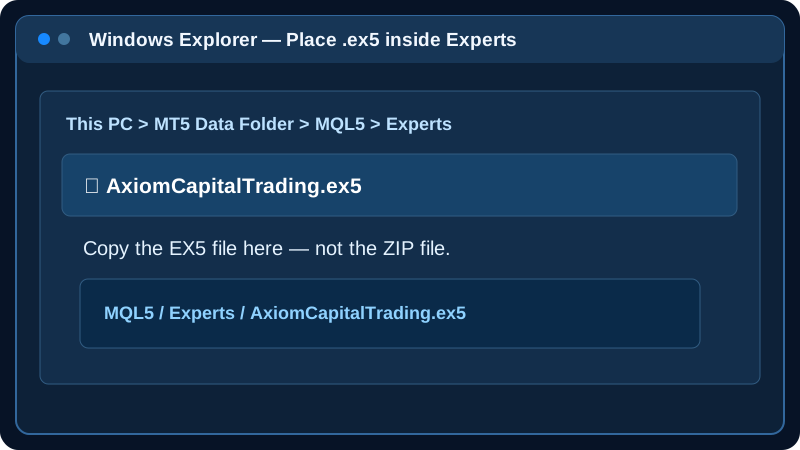
Copy AxiomCapitalTrading.ex5 from the extracted ZIP into MQL5\Experts\. Keep the filename unchanged. If the ZIP includes a README or additional required files, follow those instructions as well. Do not place the ZIP itself in Experts, and do not copy unrelated files.

Illustrated example: Copy the compiled EA into Experts
Illustrated guide — menu appearance may vary by MT5 version.
05

Refresh Expert Advisors

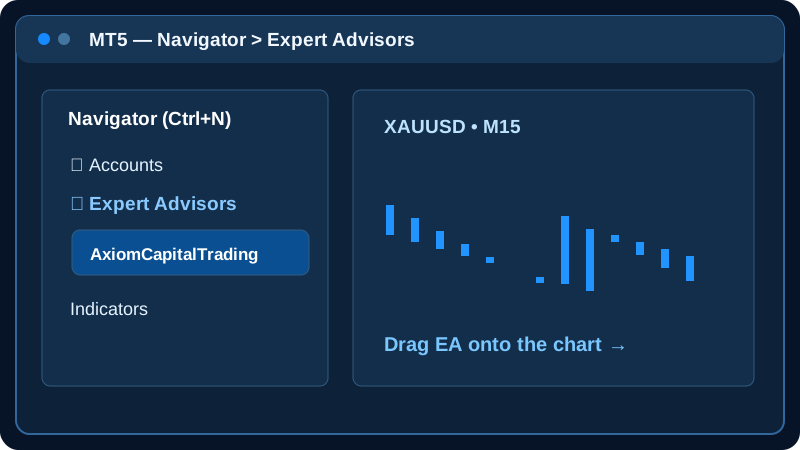
Return to MT5. Press Ctrl+N to open Navigator. Under Expert Advisors, right-click and select Refresh (or restart MT5). Confirm AxiomCapitalTrading appears in the list.

Illustrated example: Refresh Expert Advisors
Illustrated guide — menu appearance may vary by MT5 version.
06

Open the correct symbol and chart

Open the chart for the symbol your broker offers and your EA version supports, for example XAUUSD. Select the timeframe specified in your EA setup instructions. Broker symbol suffixes and available instruments may differ.

07

Attach the EA to the chart

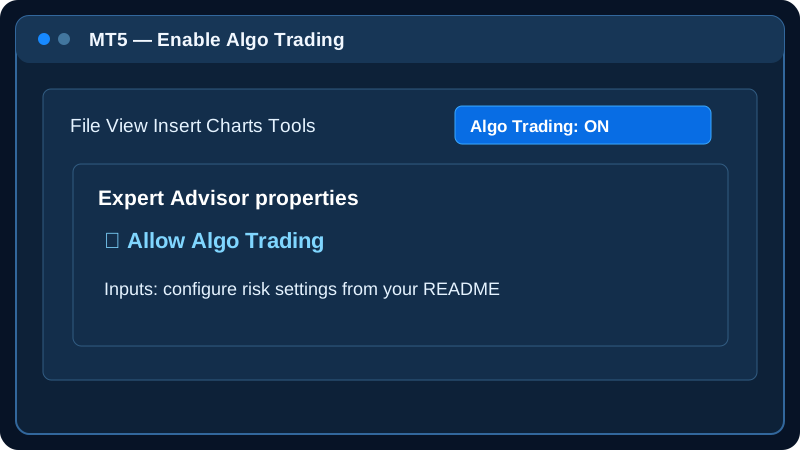
Drag AxiomCapitalTrading from Navigator onto the chart, or double-click it. Review the Inputs tab and configure the account-risk limit and other settings according to your installation README. If a license or account number is required, enter it as directed; the ZIP alone does not activate any optional licensing. Under Common, enable Allow Algo Trading when ready to test.

Illustrated example: Attach the EA to the chart
Illustrated guide — menu appearance may vary by MT5 version.
08

Enable MT5 algorithmic trading

Turn on the main Algo Trading control on the MT5 toolbar. If trading remains disabled, check Tools → Options → Expert Advisors for the global permissions. Do not enable DLL imports or add WebRequest URLs unless explicitly required in your official installation package.

Illustrated example: Enable MT5 algorithmic trading
Illustrated guide — menu appearance may vary by MT5 version.
09

Test on a demo account first

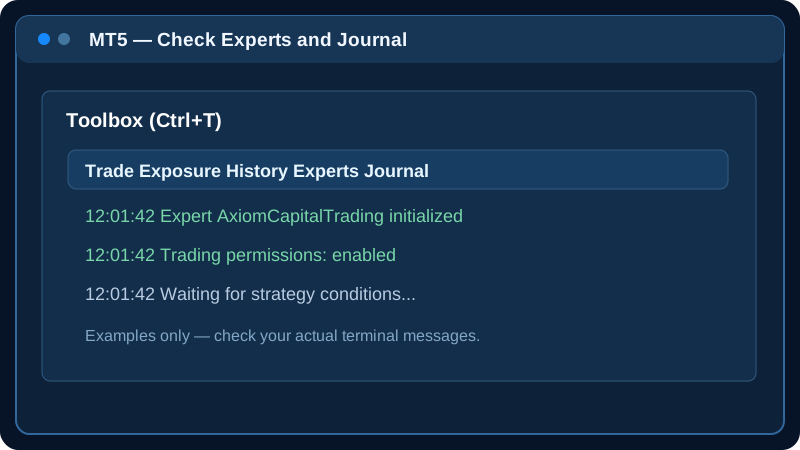
Verify the EA name appears on the chart, confirm Algo Trading is enabled, and inspect the Experts and Journal tabs in Toolbox (Ctrl+T) for errors. Before using live funds, confirm lot size, stop-loss behavior, broker minimum volume, and maximum risk are appropriate for your account. An EA may wait for a valid signal rather than trade immediately.

Illustrated example: Test on a demo account first
Illustrated guide — menu appearance may vary by MT5 version.
10

Keep MT5 running

MT5 and the EA must remain running and connected for ongoing automated execution. You can use a Windows VPS if you do not want to leave your home computer on. Do not close MT5 or disconnect the VPS. Avoid running duplicate EA instances on the same account unless your setup explicitly supports it.

11

Confirm installation and install future releases

After installation, confirm the EA is attached to the intended chart and review any license or expiration message in the Experts tab. If we send a new compiled version, first save your settings, remove the old EA from the chart, replace its .ex5 file in MQL5\Experts, refresh Navigator, and reattach the updated version. No charge on new releases when adjustments are made to this version of the EA.

Before you trade

Risk settings and safety

Depending on the released EA version, dynamic risk-to-reward targets may include 1 to .5, 1 to 1, 1 to 2, and 1 to 3. These are strategy targets, not guaranteed profits. Your configured account risk, available margin, symbol specifications, and broker execution conditions affect actual results.

Start on a demo account and verify that protective stop-loss orders are placed as intended. CFDs are leveraged and can cause substantial losses, including losses exceeding the amount expected from a stop due to gaps or slippage.

Troubleshooting

EA doesn't appear in Navigator?

Confirm the file is extracted, ends in .ex5, and is inside the data folder of the MT5 terminal you're using. Refresh Navigator or restart MT5.

EA is attached but not trading?

Confirm Algo Trading is enabled globally and for the EA. Check Experts and Journal for errors. The algorithm may simply be waiting for its entry conditions.

Order rejected or wrong volume?

Check your broker's minimum/maximum lot size, volume increments, account margin, symbol trading hours, and the EA's risk configuration. Review the exact rejection message.

Can I use the ZIP on another computer?

You can transfer the installation package, but use is subject to your purchase terms and any account-based licensing. Do not distribute the EA to other people.

This page explains installing the compiled EA for EA purchasers. Prospective customers who only want to review published demo results do not need to install the EA. This guide assumes Windows desktop MT5; MT5 mobile cannot run EX5 Expert Advisors.